The Post Content Scanner: Fix Stale Image URLs Automatically
How StaticQ Media's Post Content Scanner finds and fixes stale image URLs in your WordPress posts: wrong domains, outdated filenames, and broken references.
Your WordPress posts contain image URLs that were correct when you hit Publish but aren’t anymore. You migrated from oldsite.com to newsite.com and every image URL still points to the old domain. You switched CDN providers and the old CDN hostname is baked into hundreds of posts. You changed themes and the thumbnail filenames no longer match. WordPress stores image URLs as literal strings in post_content. It doesn’t rewrite them when your configuration changes. The URLs just go stale.
StaticQ Media’s Post Content Scanner reads through every post in your database, identifies image URLs that don’t match your current setup, and fixes the ones it can repair automatically.
Why Post Content URLs Go Stale
When you insert an image into a WordPress post, the editor writes an <img> tag with a hardcoded URL into the post_content field. Something like:
<img src="https://example.com/wp-content/uploads/2024/03/photo-300x200.jpg" alt="..." />That URL is now a permanent part of the post. WordPress doesn’t maintain a link between the URL in the post and the underlying attachment. It’s just a string in an HTML blob. If anything changes about how that image is served, the URL in the post doesn’t update.
Here are the most common scenarios:
Domain Migration
You move your site from staging.example.com to example.com, or from oldsite.com to newsite.com. WordPress search-and-replace tools catch the site URL in options and metadata, but image URLs embedded in post content are easy to miss, especially if you’re doing a partial migration or your tool doesn’t handle serialized data correctly. The result: posts reference images on a domain you no longer control.
CDN Provider Switch
You were using a CDN like KeyCDN or BunnyCDN with a custom subdomain (cdn.example.com). Image URLs in your posts point to that subdomain. You switch to Cloudflare R2 with a different delivery domain. Every old post still references the previous CDN hostname.
Theme Change
Your old theme registered a custom image size called blog-featured at 800x450. Image URLs in posts reference files like photo-800x450.jpg. Your new theme doesn’t register that size. It uses post-thumbnail at 1024x576 instead. The old filename is baked into the post content, and the file it references might not even exist anymore if you’ve regenerated thumbnails.
Deleted Attachments
Someone deleted an image from the media library, but the posts that used it still contain the URL. The <img> tag is there, the src points to a file that no longer exists, and visitors see a broken image.
What the Scanner Detects
The Post Content Scanner parses every <img> tag in your post content and classifies each URL into one of four categories.
Wrong Domain
The image URL contains a domain that doesn’t match your current site URL. This could be a previous domain, a staging environment URL, an old CDN hostname, or a development server address.
For example, your site is now example.com but the post contains:
<img src="https://old-domain.com/wp-content/uploads/2024/03/photo.jpg" />The scanner identifies the attachment by matching the file path portion of the URL against your media library metadata. If it finds a match, it knows the image exists. It’s just being referenced by the wrong domain.
Stale Size Reference
The filename in the URL references a thumbnail size that doesn’t match the attachment’s current metadata. The file path looks like a WordPress-generated thumbnail (photo-300x200.jpg), but the attachment metadata says the current sizes use different filenames.
This usually means the thumbnails have been regenerated with different dimensions since the post was written. The URL points to an old filename that may or may not exist on disk.
Deleted Attachment
The scanner can’t match the URL to any attachment in your media library. The image was likely deleted from the library at some point, but the URL persists in the post. This is informational. The scanner reports it, but can’t auto-fix it because there’s no attachment to map it to.
Broken URL
The URL looks like it should be a WordPress media URL (it matches the uploads path pattern), but the scanner can’t resolve it to a specific attachment or determine what went wrong. This is a catch-all for URLs that are malformed, reference non-standard paths, or point to files that were never properly registered in WordPress.
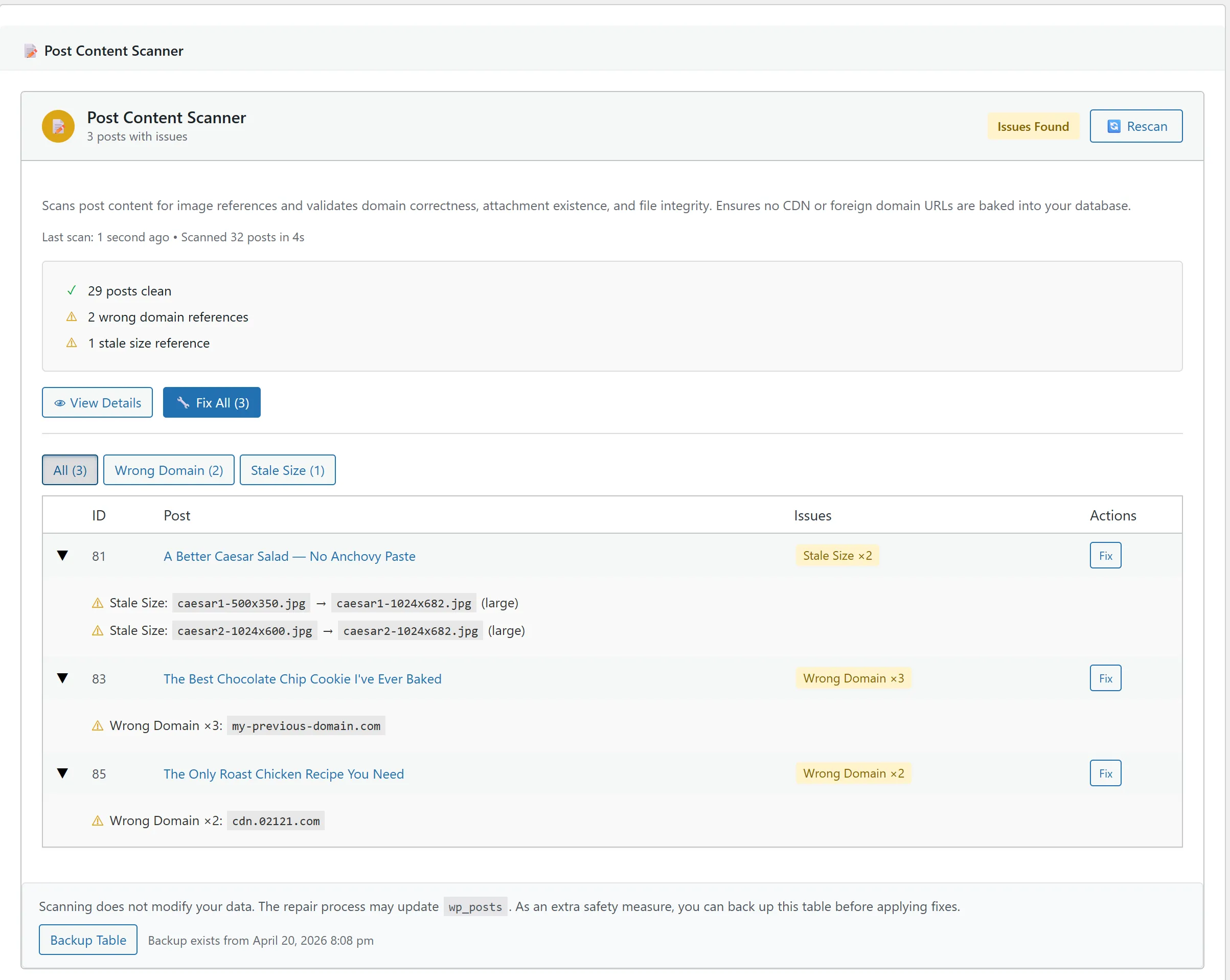
How the Scanner Works
The Post Content Scanner reads through all posts, pages, and custom post types in your WordPress database. It doesn’t filter by publication status: drafts, scheduled posts, and private posts are all scanned, because stale URLs in unpublished content will become visible the moment you publish.
For each post, the scanner extracts every <img> tag, parses the src attribute, and runs it through a series of checks:
- Domain check: does the URL’s hostname match your current site URL?
- Attachment lookup: can the file path portion of the URL be matched to an attachment in the media library?
- Size validation: if the URL references a specific thumbnail size (indicated by dimensions in the filename), does that size match the attachment’s current metadata?
- Existence check: does the referenced attachment still exist in the database?
The scan runs in batches via AJAX, similar to the Media Library Scanner. It doesn’t modify any content during the scan. It only reads and reports.
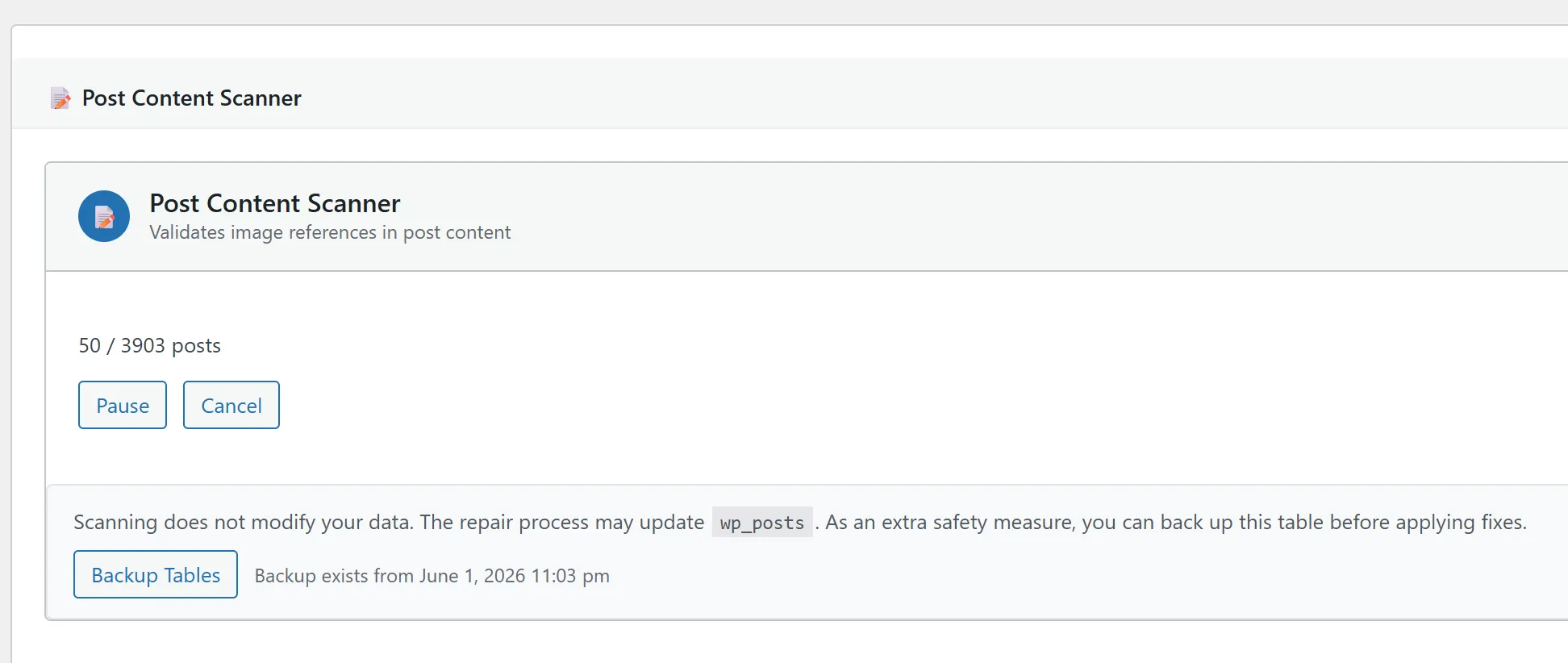
The Repair Process
Once the scan completes, you can review the results and run repairs. The scanner can auto-fix two of the four issue types:
Wrong Domain: Auto-Fix
The scanner rewrites the URL to use your current site domain. If the post contains:
<img src="https://old-domain.com/wp-content/uploads/2024/03/photo.jpg" />The fix changes it to:
<img src="https://example.com/wp-content/uploads/2024/03/photo.jpg" />The file path portion stays the same. Only the domain is replaced. This is safe because the scanner already verified that the attachment exists in your media library at that path.
Stale Size Reference: Auto-Fix
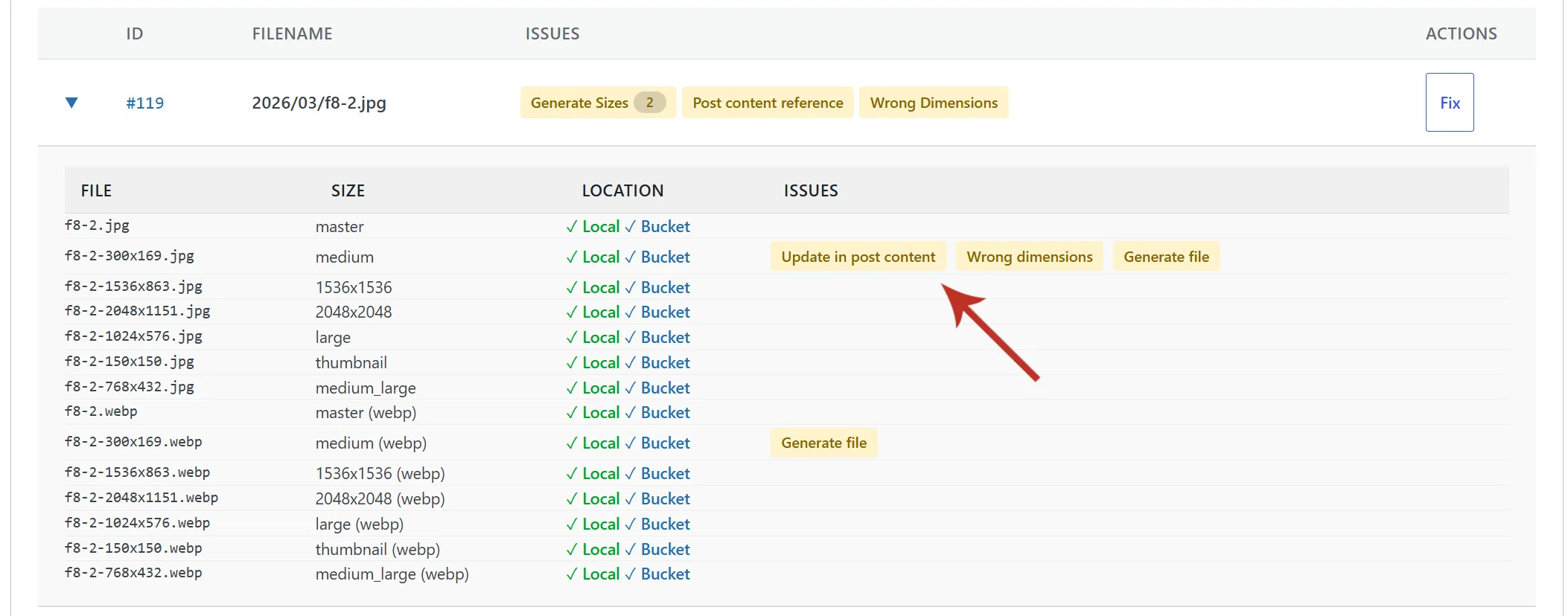
The scanner updates the filename to match the current thumbnail metadata. If the post references photo-300x200.jpg but the attachment’s current medium size is photo-600x400.jpg, the fix updates the URL to point to the correct current file.
The scanner only makes this replacement when it can confidently map the old filename to a current size for the same attachment. If the mapping is ambiguous, it leaves the URL alone and reports it for manual review.
Deleted Attachment: Manual Review
The scanner can’t auto-fix a deleted attachment because there’s nothing to fix it to. The image is gone from the media library. The scanner tells you which posts are affected and shows the broken URL so you can decide what to do: re-upload the image, replace it with a different one, or remove the <img> tag from the post.
Broken URL: Manual Review
Similar to deleted attachments, broken URLs require human judgment. The scanner reports them so you know they exist. You’ll need to inspect each one and determine whether the image should be re-uploaded, the URL corrected manually, or the reference removed.
Back Up Before Running Fixes
The Post Content Scanner modifies post_content in your wp_posts table. This is your actual post content, the HTML body of every post, page, and custom post type. Before running fixes, back up the table.
The easiest way is built into the plugin. The Post Content Scanner section in the Media Manager includes a Backup Tables button. One click stores a snapshot of wp_posts in your database, with a visible timestamp of the most recent backup. The button lives right next to the scan controls so you can’t miss it.
If you’d rather use external tooling:
- WP-CLI, if you have shell access:
wp db export --tables=wp_posts backup-before-content-fix.sql - A backup plugin: run a database-only backup so it’s small and fast to restore.
- Your host’s one-click snapshot, available on most managed-WordPress providers.
Whichever route you take, the fix operations themselves are precise. They only change the specific URLs that were flagged, but a backup ensures you can roll back completely if needed. This is especially important on sites with thousands of posts where the fix might touch hundreds of records in a single operation.
Step-by-Step Walkthrough
Here’s the complete workflow from start to finish.
1. Navigate to the scanner. Go to StaticQ > Media Manager and find the Post Content Scanner section.
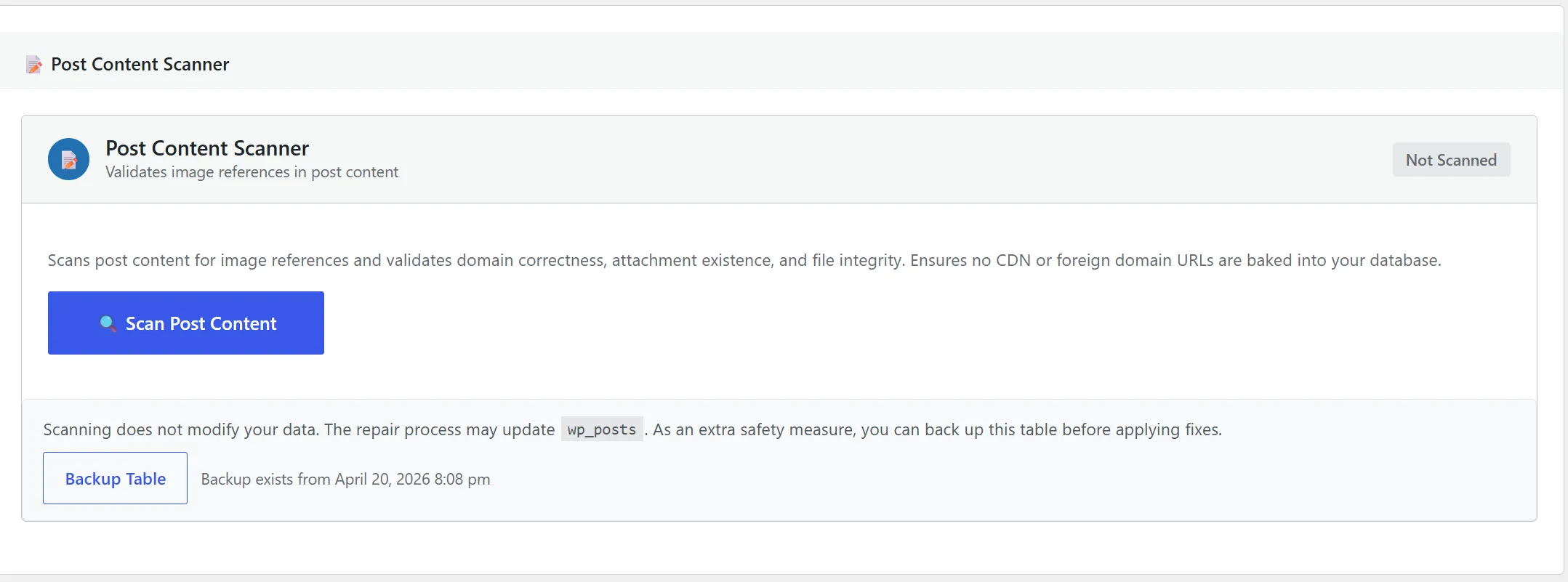
2. Run the scan. Click Scan Post Content. The scanner processes posts in batches, showing a progress bar. Wait for it to complete.
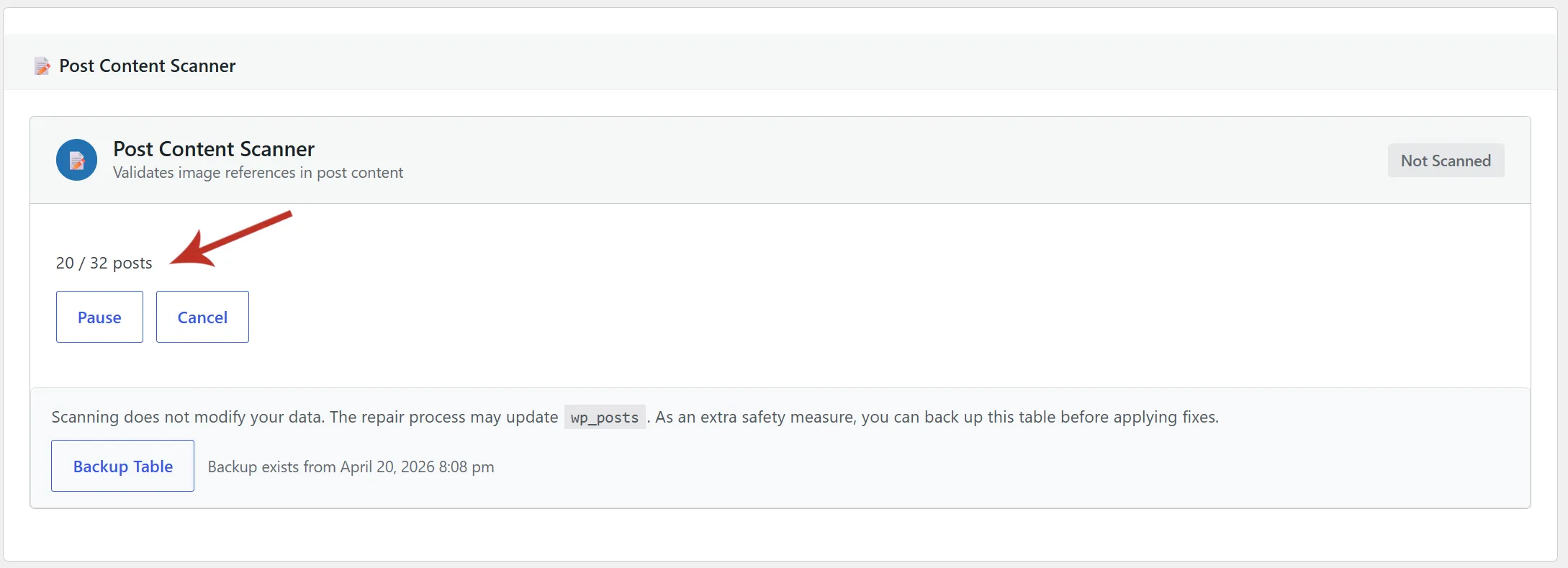
3. Review results. The scanner shows issues grouped by type: wrong domain, stale size, deleted attachment, broken URL. Expand each category to see the affected posts and specific URLs.
4. Back up your database. Before fixing anything, export your wp_posts table.
5. Fix auto-repairable issues. Click Fix All to repair wrong domain and stale size URLs. The scanner shows how many URLs were updated and in how many posts.
6. Handle manual items. For deleted attachments and broken URLs, visit the affected posts individually. The scanner gives you direct edit links. Re-upload the missing image, swap in a replacement, or remove the broken reference.
7. Re-scan to verify. Run the scanner again after fixes. Auto-fixable issues should be gone. Only manual-review items (if any) will remain.
When Stale URLs Accumulate
Every WordPress site accumulates stale image URLs over time. It’s not a sign that something is broken. It’s a natural consequence of how WordPress stores content. The Post Content Scanner gives you visibility into the problem and a safe way to fix it, without manually editing hundreds of posts or running risky find-and-replace queries on your database.
Run it after every domain change, every CDN switch, and every theme migration. It takes a few minutes to scan and seconds to fix. The result is a site where every image URL in every post points to a real, current, correctly-served file.